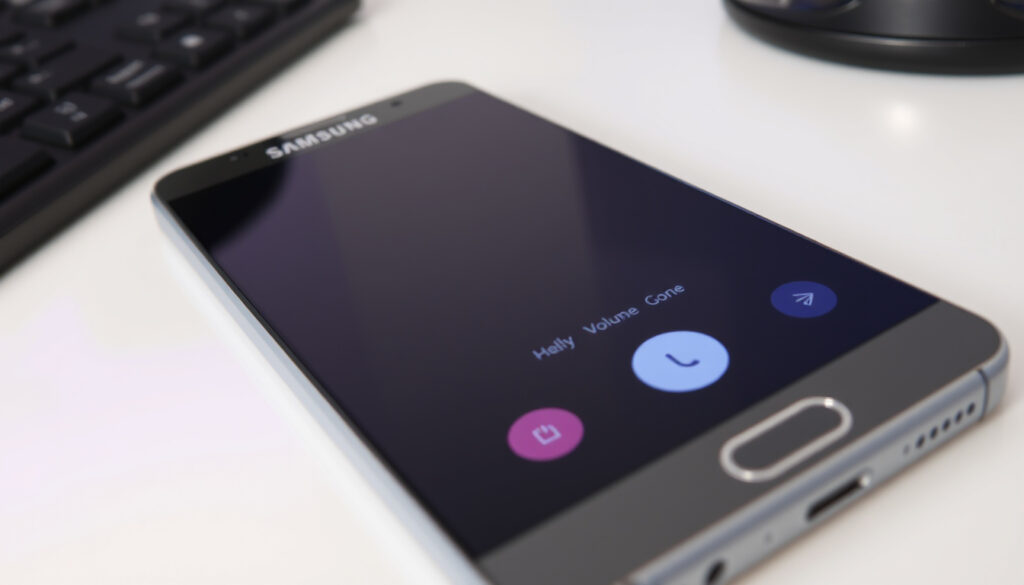
How to Take a Screenshot on Samsung Galaxy (6 Ways)
Anyone who has tried to capture something on their Samsung Galaxy screen knows there are more ways than one — from hardware buttons to a simple hand gesture. This guide breaks down each official method backed by Samsung’s own support pages and government guides so you can pick what works best for you.
Samsung Galaxy devices sold worldwide (2023): 226 million · Most common screenshot method: Power + Volume Down · Models with Palm Swipe gesture: All Galaxy S, Note, A series from 2015 onward · Third-party screenshot apps on Google Play: Over 500
Quick snapshot
- Hardware key combo (Power + Volume Down) works on all Galaxy phones (Samsung Support (US))
- Palm Swipe gesture is available from Galaxy S6 onward (Samsung Support (US))
- Scrolling screenshot introduced in One UI 2.0 (2019) (Samsung Support (Levant))
- Exact availability of Palm Swipe on entry-level Galaxy A series before 2018
- Whether scrolling screenshot works on all apps (some third-party apps block it)
- Whether three-finger swipe works on stock One UI without third-party apps (not natively supported)
- Samsung US support page last updated May 30, 2026 (Samsung Support (US))
- Samsung Levant scroll capture page last updated Sep 20, 2025 (Samsung Support (Levant))
- Expect Samsung to keep hardware keys as primary method in future One UI updates (Samsung Support (US))
- More gesture and voice options likely as Good Lock modules evolve (Reddit r/samsung)
Four key specs define the screenshot experience across the Galaxy lineup — here is one pattern: Samsung has kept the core method consistent for a decade while adding convenience layers on top.
| Attribute | Value |
|---|---|
| Number of Samsung Galaxy models supporting screenshot | All models running Android 4.0+ (Ice Cream Sandwich) and later |
| Default screenshot file format | PNG |
| Default save location | Internal storage > DCIM > Screenshots or Pictures > Screenshots |
| Scrolling screenshot availability | Introduced in One UI 2.0 (2019); available on most recent models |
What is the easiest way to screenshot on a Samsung phone?
The answer depends on your dexterity and willingness to set up gestures. Samsung offers two genuinely easy paths, each with a different trade-off.
Using the hardware key combo (Power + Volume Down)
This is the universal method. Press and hold the Power and Volume Down buttons simultaneously until the screen flashes — your screenshot is saved instantly. According to Samsung’s official support page (US), this works on every Galaxy model running Android 4.0 or later. The Australian eSafety Commissioner also confirms the hardware method as the standard for Android devices.
Using the Palm Swipe gesture
For a hands-free feel, enable Palm swipe to capture via Settings > Advanced features > Motions and gestures. Once activated, swipe the side of your hand across the screen from left to right (or right to left) to take a screenshot. Samsung’s support page notes this feature is available on models from Galaxy S6 onward. The catch: it requires initial setup and a clean swipe motion — some users find it finicky on smaller screens.
Hardware keys work every time without setup. Palm swipe is faster once muscle memory kicks in, but it adds a configuration step that casual users may skip.
The pattern: hardware keys are universal; palm swipe requires setup but rewards muscle memory.
How do I take a screenshot on my Samsung Galaxy phone?
Here are the core methods covered in Samsung’s own documentation. Each works across the Galaxy family — S, Note, A, Z Fold/Flip, and Tab series.
Method 1: Power and Volume Down buttons
Press and hold both buttons for 1–2 seconds. The screen flashes, a toolbar appears briefly, and the PNG image saves to DCIM/Screenshots. This is the official standard and requires zero preparation.
- Press and hold the Power button (right edge) and Volume Down button (left edge) simultaneously.
- Keep holding for 1–2 seconds until the screen flashes.
- Release both buttons — the screenshot is saved automatically.
Method 2: Palm Swipe gesture
Head to Settings > Advanced features > Motions and gestures and toggle Palm swipe to capture on. Then swipe the outside edge of your hand across the display. The gesture works left-to-right and right-to-left. Samsung’s support page provides step-by-step setup instructions.
Method 3: Bixby or Google Assistant voice command
If your hands are full, just say “Hey Bixby, take a screenshot” or “Hey Google, take a screenshot”. Samsung’s official support page lists both voice assistants as valid screenshot commands. Note that each assistant must be set up and listening beforehand.
Method 4: Using the Side key (on older models)
On some Galaxy phones, pressing and holding the Power button brings up a menu with a Screenshot icon. This is less common in One UI 5+ but still present on older One UI versions. Refer to Samsung’s support documentation for model-specific details.
Model-specific instructions
For Galaxy S24, use Power+Volume Down or Palm Swipe; for Galaxy Tab, the same hardware combo works. Older models like S10 and S21 follow identical methods, though One UI versions may vary the exact settings path. Samsung’s official support pages cover all models uniformly.
The pattern across all four methods: Samsung prioritizes the hardware combo as the one-size-fits-all solution, while offering gesture, voice, and menu-based alternatives for different situations.
Where is the screenshot button in Samsung?
You don’t need to hunt for a virtual button — the screenshot trigger lives in three places, each designed for a different kind of use.
On the physical buttons
The Power button sits on the right edge; the Volume Down button is on the left edge. Press both together. No on-screen button required.
In the Quick Settings panel
Swipe down twice from the top to open the full Quick Settings panel. Tap the edit (pencil) icon, find the Screenshot tile, and drag it into your active toggles. After that, one tap captures the screen. Samsung’s support page confirms this customisation option.
In the Edge panel (if enabled)
Go to Settings > Display > Edge panels and enable the panel. Then choose Smart Select or Screen write — both include a screenshot function. Samsung’s support documentation mentions Edge panel as a valid capture method on compatible devices.
The Quick Settings tile is fast once added, but it’s hidden by default. New users may never discover it without a guide like this one.
The implication: most users rely on the hardware keys, but the Quick Settings tile is a hidden gem.
How to take a screenshot in Samsung phone with fingers?
If you want a touch-based method, Samsung’s official finger solution is the Palm Swipe gesture — not a finger tap. Here’s how it differs from what you might expect.
Palm Swipe gesture (hand edge)
As described earlier, enable it under Settings > Advanced features > Motions and gestures. Then use the side of your palm, not your fingertips, to swipe across the screen. YouTube community tutorials (example video) demonstrate the motion clearly.
Three-finger swipe (requires Good Lock or third-party app)
Stock One UI does not support a three-finger swipe gesture natively. Some users install One Hand Operation+ from Samsung’s Good Lock suite or third-party apps to add this. The Blackview blog mentions an accessibility-based workaround, but it’s not a primary Samsung method.
Palm swipe is easy once learned, but it requires a specific motion. Three-finger swipe is more intuitive for many users, yet it demands extra software not everyone wants to install.
The trade-off: palm swipe is Samsung’s official finger method, while three-finger swipe requires extra software.
How to take a screenshot on Samsung phone without volume button?
Broken volume button or simply prefer not to use it? Samsung provides three workarounds that rely on the Power button or software shortcuts.
Using the Power button and Bixby
With Bixby enabled, press and hold the Power button (if set to launch Bixby) then say “Take a screenshot”. Alternatively, set the Side key to open Bixby and use voice.
Using the Assistant menu (accessibility)
Go to Settings > Accessibility > Interaction and dexterity > Assistant menu. Enable the floating shortcut. A semi-transparent icon appears on screen — tap it, then select Screenshot. This method is designed for users with limited dexterity but works for anyone with broken buttons. Samsung’s support page lists Assistant menu as a valid accessibility option.
Using the side key shortcut
In Settings > Advanced features > Side key, you can set a double-press or press-and-hold action to Screenshot. This replaces the need for the volume button entirely. The setting is available on most Galaxy models running One UI 3.0 and above.
The implication: if your hardware is damaged, accessibility and customisation features fill the gap — but they require a one-time setup that many users don’t know about.
Scrolling screenshot (long capture) on Samsung Galaxy
To capture an entire web page, chat, or document, Samsung’s Scroll Capture feature stitches multiple screenshots into one long image. According to Samsung’s Levant support page, start by taking a normal screenshot (Power + Volume Down). A toolbar appears at the bottom — tap the Scroll Capture icon (two downward arrows). The screen scrolls automatically and keeps extending the capture. You can long-press the Scroll Capture icon to capture even more. This feature was introduced in One UI 2.0 (2019). Some third-party apps, however, may block the automatic scrolling.
“Press and hold the power key and the volume down key simultaneously until the screen flashes. Your screenshot will then save.”
Samsung Support (US)
“Press and hold the Power button and the Volume down button (at the same time) for 1 to 2 seconds to take the screenshot.”
What this means: scrolling captures are a powerful tool, but not all apps support them.
For Samsung Galaxy owners in any country, the choice is clear: master the hardware combo first, then layer on gesture and voice shortcuts as needed. Ignoring the setup steps means missing out on a faster, more accessible experience — especially when you’re capturing multiple pages or working with one hand.
store.blackview.hk, youtube.com, youtube.com, youtube.com, youtube.com, youtube.com, youtube.com, reddit.com
For a comprehensive overview of all available options, check out this guide on Samsung Galaxy screenshot methods.
Frequently asked questions
How do I take a scrolling screenshot on Samsung?
Take a normal screenshot with Power + Volume Down, then tap the Scroll Capture icon (two downward arrows) on the floating toolbar. The screen will scroll automatically. Long-press the icon to capture even more. This feature is available on devices running One UI 2.0 and later, as documented by Samsung Support (Levant).
Where are my screenshots saved on a Samsung phone?
By default, screenshots are saved to Internal storage > DCIM > Screenshots or Pictures > Screenshots. You can also find them in the Gallery app under the Screenshots album. The file format is PNG. You can later print them using services like Harvey Norman Photo Centre Guide.
How to take a screenshot on Samsung if the buttons are broken?
Use the Assistant menu (Settings > Accessibility > Interaction and dexterity > Assistant menu) for a floating shortcut, or set the Side key (Settings > Advanced features > Side key) to Screenshot. Voice commands via Bixby or Google Assistant also work.
Can I take a screenshot without pressing any buttons?
Yes. Enable Palm swipe to capture under Settings > Advanced features > Motions and gestures, or use voice commands like “Hey Google, take a screenshot.” Samsung’s support page lists both as official methods.
How to take a screenshot on Samsung Galaxy S24?
The Samsung Galaxy S24 uses the standard One UI 6.1 methods. Press Power + Volume Down simultaneously, or enable Palm Swipe via Settings > Advanced features > Motions and gestures. Bixby voice command also works. All methods are supported by Samsung’s official US support page.
How to take a screenshot on Samsung Galaxy Tab?
On Galaxy Tab devices, use the same hardware combo: press and hold Power + Volume Down. Palm Swipe and voice commands also work on compatible Tab models. For scrolling screenshots, tap the Scroll Capture icon after a standard capture. Samsung’s Levant support page confirms Scroll Capture works on tablets as well.
Why is my Samsung screenshot not working?
Common causes: buttons pressed too quickly or not simultaneously, Palm Swipe not enabled in Settings, or a third-party app blocking the capture. Try restarting the phone, checking for system updates, and ensuring no screen overlay apps (like blue light filters) are interfering. Samsung’s support page offers general troubleshooting steps.
More related posts
 Jodie Turner-Smith: Biography, Divorce, Ethnicity, and More
 Foreign Birth Registration Ireland: Eligibility & Process
 Mountaineers of Iceland Snowmobiling: Tours, Prices & Tips
 Post Office Killarney Opening Hours: New Street, Fairhill
 Qatar Airway Dublin Terminal: Complete Terminal 1 Guide
 SEO Content Brief Template – Effektiv Struktur För Bättre Innehåll
 Free Things to Do in Dublin: 20+ Attractions & Tips
 St Joseph’s Secondary School Drogheda: Phone, Uniform, Roll